Set up Carats.Online label printing
Install the TSC TTP-247 printer and PrintFile utility, copy the settings shown below, then connect .prn label files to the printer.
Verified download: prf32-216.zip · Windows only
Use a Windows account that can install software. Connect and power on the printer, and have one roll of the correct labels ready. The required printer is TSC Auto ID TTP-247.
Install the TSC TTP-247 printer driver
The exact model is the TSC Auto ID TTP-247 desktop thermal-transfer barcode label printer.
- Connect the printer to the Windows computer and switch it on.
- Open the official TSC Download Centre .
- Enter TTP-247 as the model number and download the current Windows printer driver.
- Run the driver installer. Select the TSC TTP-247 and the correct USB or network port when asked.
- When installation finishes, open Windows Settings > Bluetooth & devices > Printers & scanners and confirm that TSC TTP-247 appears.
Download and install PrintFile
- Download prf32-216.zip and save it to your Downloads folder.
- In File Explorer, right-click the ZIP file and choose Extract All.
- Open the extracted folder and run Setup.exe. Accept the Windows administrator prompt and complete the setup.
- Open PrintFile from the Start menu. If the installer did not create a desktop shortcut, open Settings in PrintFile and click Shortcut....
Only install the ZIP from the download link on this page. A .prn file contains raw printer commands, so only open label files downloaded from Carats.Online.
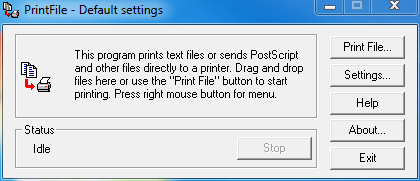
Copy the PrintFile settings
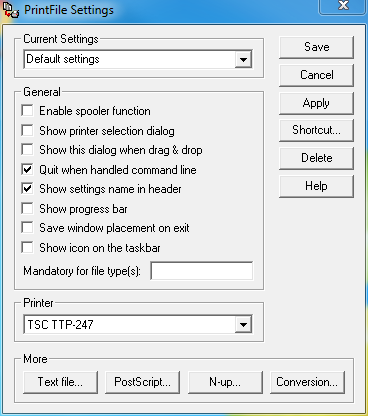
Open each settings window shown below. Match every selected option, tick and value, then click OK or Apply. Return to the main PrintFile Settings window and click Save when finished.
General and printer
- Current Settings: Default settings
- Off Enable spooler function
- Off Show printer selection dialog
- Off Show this dialog when drag & drop
- On Quit when handled command line
- On Show settings name in header
- Off Show progress bar
- Off Save window placement on exit
- Off Show icon on the taskbar
- Mandatory for file type(s): leave blank
- Printer: TSC TTP-247
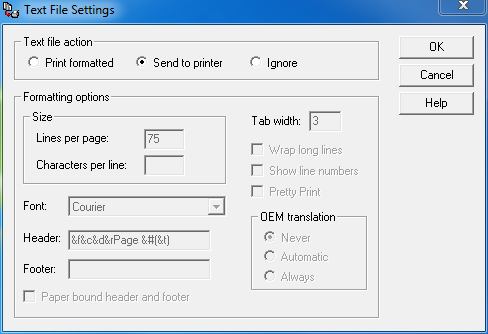
Text File
- Text file action: Send to printer
- Tab width: 3
- Leave all disabled formatting and OEM translation options as shown.
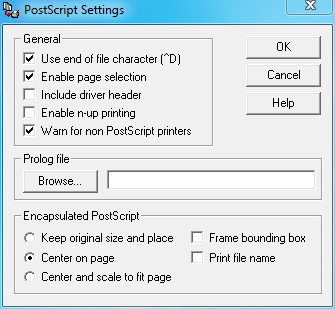
PostScript
- On Use end of file character (^D)
- On Enable page selection
- Off Include driver header
- Off Enable n-up printing
- On Warn for non PostScript printers
- Prolog file: leave blank
- Encapsulated PostScript: Center on page
- Off Frame bounding box and Print file name
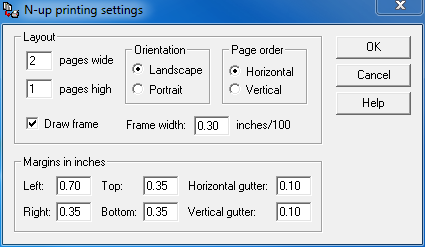
N-up
- Layout: 2 pages wide, 1 page high
- Orientation: Landscape
- Page order: Horizontal
- On Draw frame
- Frame width: 0.30 inches/100
- Margins: Left 0.70, Right 0.35, Top 0.35, Bottom 0.35 inches
- Gutters: Horizontal 0.10, Vertical 0.10 inches
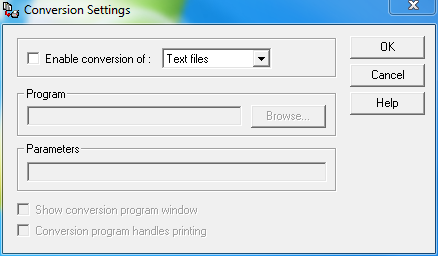
Conversion
- Off Enable conversion of
- File type shown: Text files
- Program: leave blank
- Parameters: leave blank
- Leave both disabled conversion-program options unticked.
Make PrintFile the default app for .prn files
This Windows association is what connects a downloaded label file to PrintFile.
- Download one label from Carats.Online so that a
.prnfile exists in your Downloads folder. - Right-click the file and choose Open with > Choose another app.
- Select PrintFile. If it is not listed, choose More apps > Look for another app on this PC, then browse to the installed PrintFile.exe.
- Choose Always use this app to open .prn files, then click OK.
Alternative: open Windows Settings > Apps > Default apps, search for .prn, and select PrintFile.
Download and print a label from Chrome
- In Carats.Online, choose the label you want to print. The browser downloads a file ending in
.prn. - Open Chrome Downloads using the download icon or Ctrl+J, then click the downloaded
.prnfile once. - If Chrome offers Always open files of this type in the file menu, select it. Future
.prndownloads should then open automatically in PrintFile. - PrintFile sends the prepared label file to the selected TSC TTP-247 printer and closes when the command finishes.
.prn file, or click it in Chrome Downloads. The Windows default-app setting still opens it with PrintFile.
The same fallback works in other browsers: finish the download, then click the file or double-click it in Downloads.
Final check
Print one real label from Carats.Online. The expected flow is:
.prn downloadPrintFileTSC TTP-247
If the label does not print, check that the printer is powered on and listed in Windows, then reopen PrintFile Settings and confirm that TSC TTP-247 is still selected. Do not use a normal Windows test page for this check.